
jAlbum 40 taught jAlbum to recognize the people in your photos. jAlbum 41 is about what you do with that: naming the right people in your albums, and leaving out the people who don’t want to be there.
If you photograph school classes, sports clubs, choirs or company events, you know the situation. Someone asks not to be shown, and you’re left blurring that one face by hand in photo after photo, or dropping good group shots altogether. With 41 you tell jAlbum once, and it takes care of the rest, in every album and in the photos you add later.
There’s more for Mac users, too: jAlbum now responds to the trackpad gestures you already use everywhere else.
Exclude someone, once
Open Tools > People, select a person and choose Exclude. From then on, jAlbum leaves that person unnamed in all your projects: in Edit view, in tags and captions, and in name tags on your images.
Here’s the important part: jAlbum doesn’t simply forget the person. It keeps recognizing their face, so it knows to leave it unnamed. If it forgot them instead, their face would just get the name of whoever they look most like, perhaps a sister or a classmate. Excluding keeps that from happening.
A few more things Exclude takes care of:
- Names stored in your image files. If the person’s name is already in the image metadata, from jAlbum or from another program like Lightroom, jAlbum doesn’t show it, and offers to remove it from the files.
- It’s reversible. Tick Excluded at the bottom of the People window to see who you’ve excluded, then choose Include again to undo it.
- Deleting is a deliberate second step. Only excluded people can be deleted, and jAlbum warns you that a deleted person’s face may then be named, and shown, again. That’s on purpose: excluding is the protection, and it’s meant to last.
Hide their faces, too
Leaving someone unnamed is often not enough. The new Hide faces effect, under Settings > Effects, goes further: it blurs or pixelates the faces of the people you’ve excluded, in your closeups, thumbnails and folder thumbnails. Turn it on once per project and pick Blur or Pixelate.

The hiding is made to hold up:
- It covers the whole head, not just the face. Hair and ears identify people too, so the hidden area reaches well beyond the face, with soft edges so it doesn’t look like a sticker.
- It follows each face. A small face in the back row and a close-up portrait are hidden equally well, whatever size your album images are.
- When in doubt, it hides. A face that might be the excluded person is hidden, even where jAlbum isn’t sure enough to suggest a name. A stranger blurred by mistake is a small price; a face shown that shouldn’t be isn’t.
- Cropping can’t undo it. Faces are hidden before your image edits are applied, so no crop or straightening can bring a face back into view.
- Your published albums catch up. Exclude someone after you’ve made an album, and jAlbum redoes the affected images the next time you make it.

Prefer a clear mosaic? Choose Pixelate instead of Blur.
Check before you upload. jAlbum can only hide the faces it finds, and a face turned away, partly covered or very small can slip past face detection. In Edit view, faces that will be hidden are marked Hidden, so a quick look through your images shows you what your visitors will see.
The effect changes the images jAlbum makes for your album. If you choose to include your original images in the album, those are copied as they are.
Put names on your photos
For the people who do want to be named, 41 can now write their names right onto your images. The new Names effect, under Settings > Effects, adds a name tag below each recognized face in your closeups. Choose the font, size and colours. The tags are sized the same on portrait and landscape images, and on small and large ones.
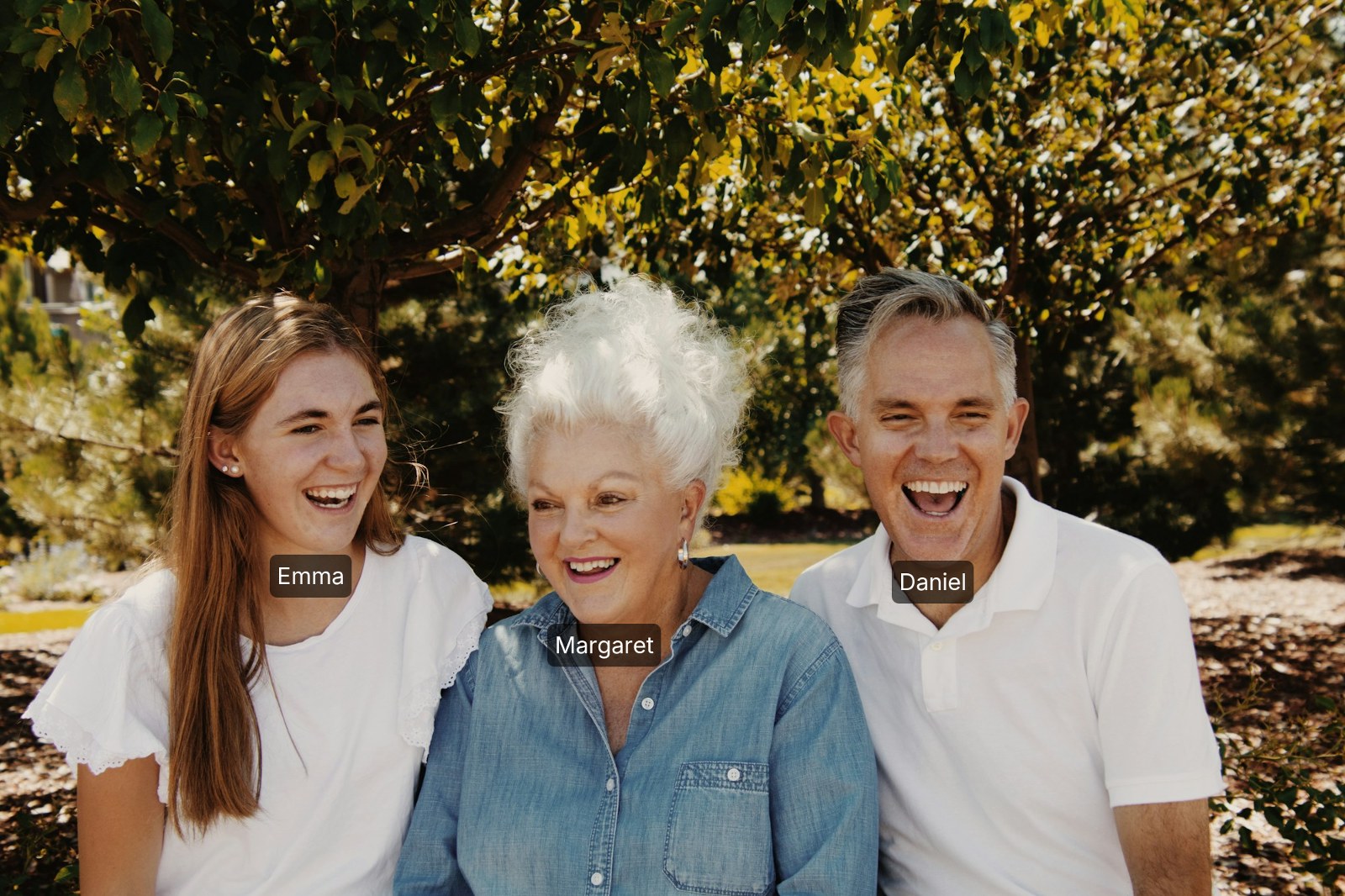
You decide how sure jAlbum must be before a name appears. The new Names of people setting, under Settings > Advanced > Metadata, offers two choices:
- Confirmed names: only the names you’ve given or confirmed yourself.
- Confirmed names and confident guesses: also the faces jAlbum is confident it recognizes.
The same setting decides which names your album’s captions and tags list, so name tags and captions always agree.
One name per person per photo
Recognition got smarter, too. Nobody can be in two places in the same photo, so jAlbum now names each person at most once per image. The face that matches someone best gets their name; the other faces get their own next-best match, or stay unnamed. Names you’ve confirmed always come first.
This helps most where people look alike, such as siblings in the same family photo.
Trackpad gestures on the Mac
On a Mac, jAlbum now responds to the trackpad gestures you use in Apple Photos:
| Gesture | What it does |
|---|---|
| Pinch | Zooms in Edit view and Review mode, around the pointer |
| Two-finger swipe sideways | Slides to the previous or next image, one image per swipe. Zoomed in, it pans instead |
| Pinch in the Crop tool | Zooms the image under the crop frame |
| Rotate in the Crop tool | Straightens the image |
| Force Touch (press firmly) | Peeks at a thumbnail right away |
Swiping also moves past views and web locations, and a wide page scrolls to its edge first. The arrow keys and buttons still switch images instantly, and scrolling up and down still zooms. The gestures are on by default.
jAlbum speaks your language
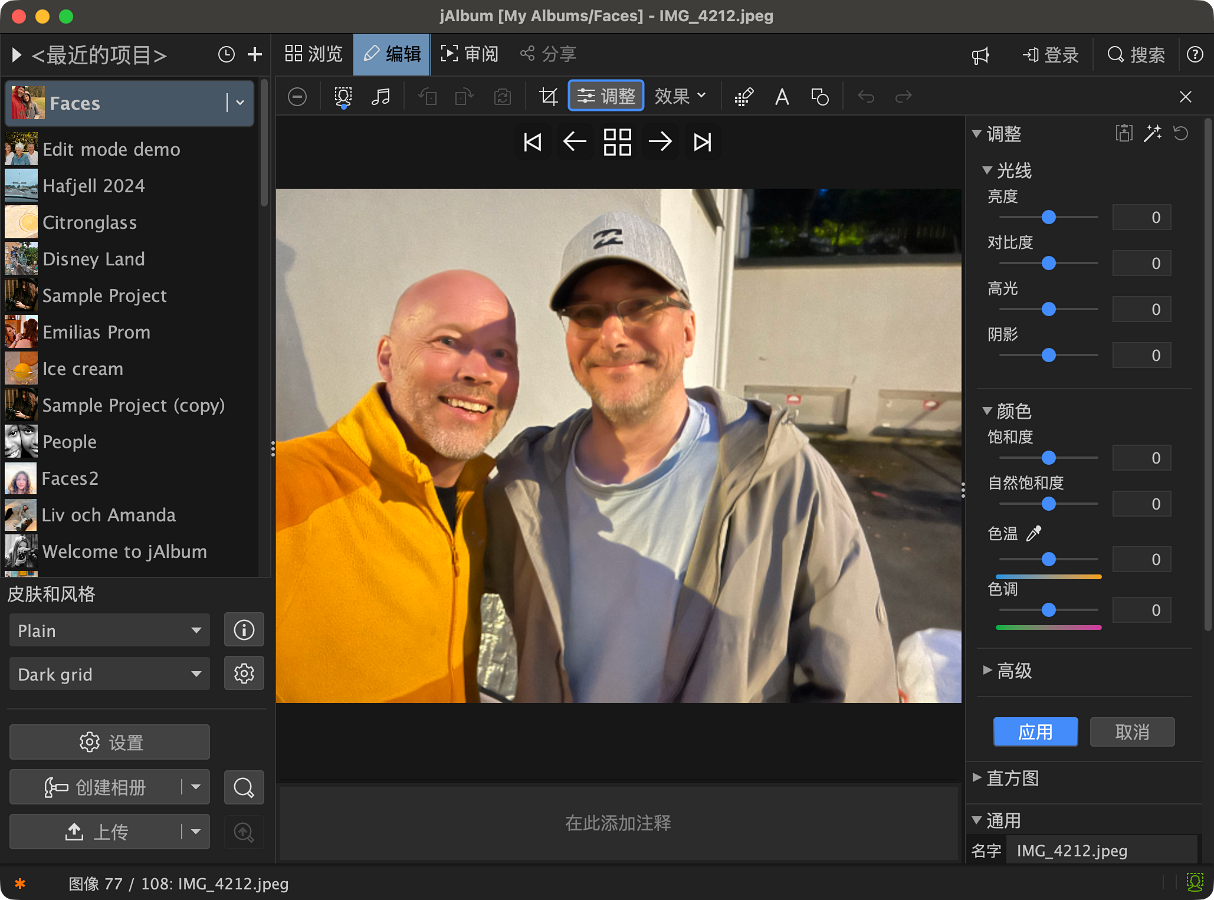
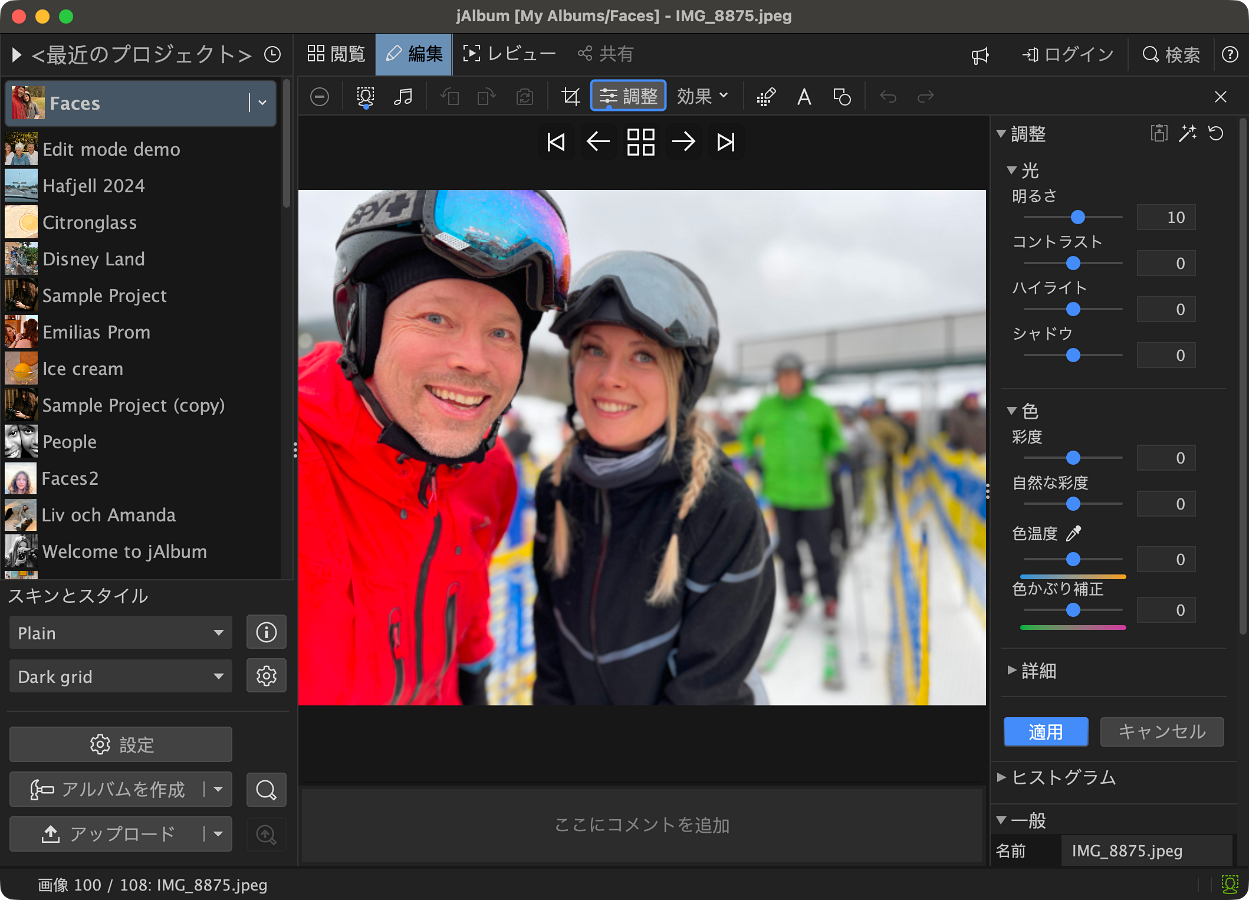
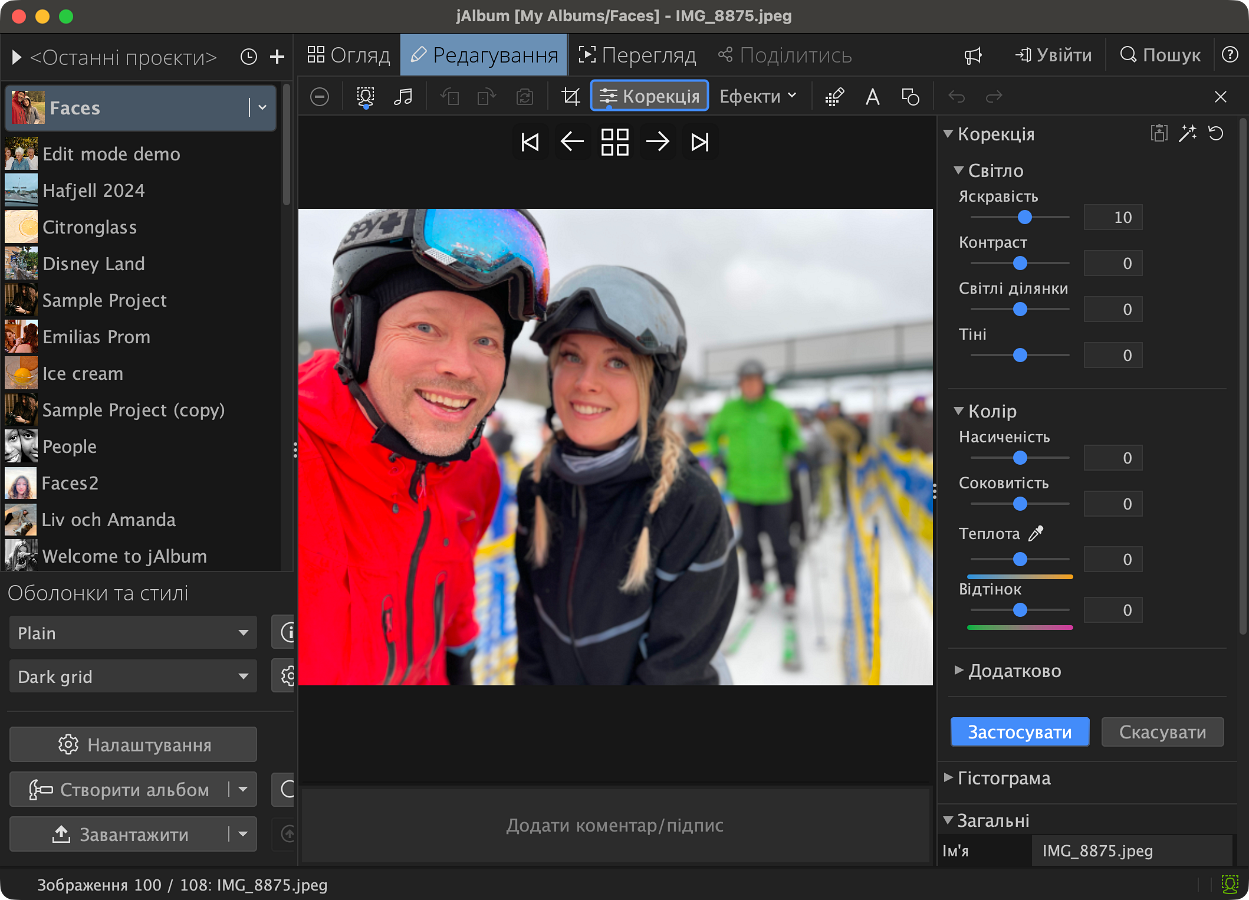
jAlbum 41 is fully translated into all 36 languages we support, from Armenian and Chinese to Japanese and Ukrainian. Every new feature in this release comes translated from day one, so you can work in the language you think in.
Also in this release
- People are listed left to right in captions and tags, the way you’d name them looking at the photo.
- Renaming someone updates your files. After renaming or merging people, jAlbum offers to save the new name in the image files that still carry the old one.
- Explore remembers Hide excluded between sessions, and an orange indicator shows when excluded files are hidden in the current folder.
- A tidier Edit view. The property panel fits its contents and remembers the width you give it, and tools like the Adjust eyedropper now show their own pointer over the image.
- A more compact playlist with drag and drop to rearrange tracks.
- More reliable RSS feeds for albums with unusual file names.
Get jAlbum 41
jAlbum 41 is a free update for anyone on a current support & update plan. We’d love to hear how the new features work for you: share your thoughts in the jAlbum forum.