
Making an album is only half the job. The other half is getting it onto your website, and for many of you that’s where this question arises: Which folder on the server is the website?
jAlbum 41 has a rebuilt Upload/Manage window that handles this for you in a more robust way than previously, and gives experienced users the file manager they’ve been asking for.
It finds your website’s folder by itself
Every web server keeps the public website in one particular folder, the “web root”. Depending on your host it’s called public_html, www, htdocs, httpdocs or something else entirely. Upload your album anywhere elsewhere and it simply won’t show up on your site.
jAlbum 41 now works this out by itself the first time you connect to an account. It looks through the server’s folders for the likely candidates. If you’ve entered your website’s address, it then confirms its pick by placing a small test file on the server and fetching it from your website. Only when the file comes back is the folder treated as your web root. It takes a few seconds, there’s an Abort button, and if you abort, nothing is stored.
Some hosting accounts serve several websites from one server. When jAlbum finds more than one, it tells you which one it picked, and you can choose another with Mark as web root.
Background uploads do the same. If a project has no upload folder yet, it now goes into a folder named after the project in your web root. You no longer get an “Unreachable” message for an address that works.
A real file manager: the Advanced view
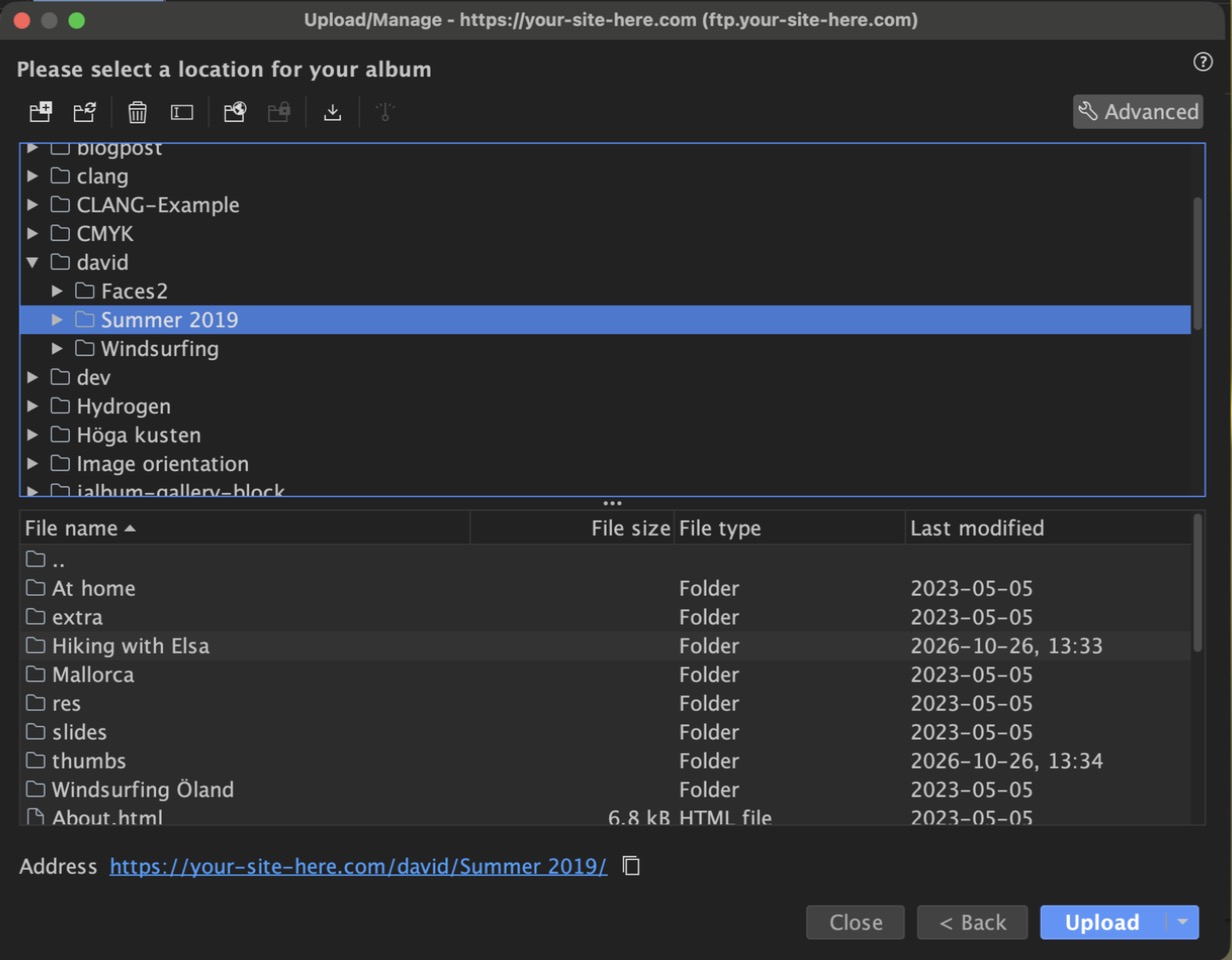
Click Advanced for a two-pane view: your server’s folders on top, and the files in the selected folder below, with name, size, type and last modified columns. If you’ve used FileZilla, you’ll feel at home:
- Sort by any column, and select several files at once
- Double-click or press Enter to open a folder
- Rename with F2, or by clicking twice slowly on a name
- Delete with the Delete key
- Type the first letters of a name to jump to it
jAlbum remembers whether you prefer the Advanced view, and how you’ve split the window between folders and files.
Drag and drop
Drag files from Finder or Explorer onto a folder in the Upload window, and they’re uploaded straight there. Within the window you can drag files and folders between server folders to move them. No more downloading and uploading again just to tidy up.
Your website, one click away
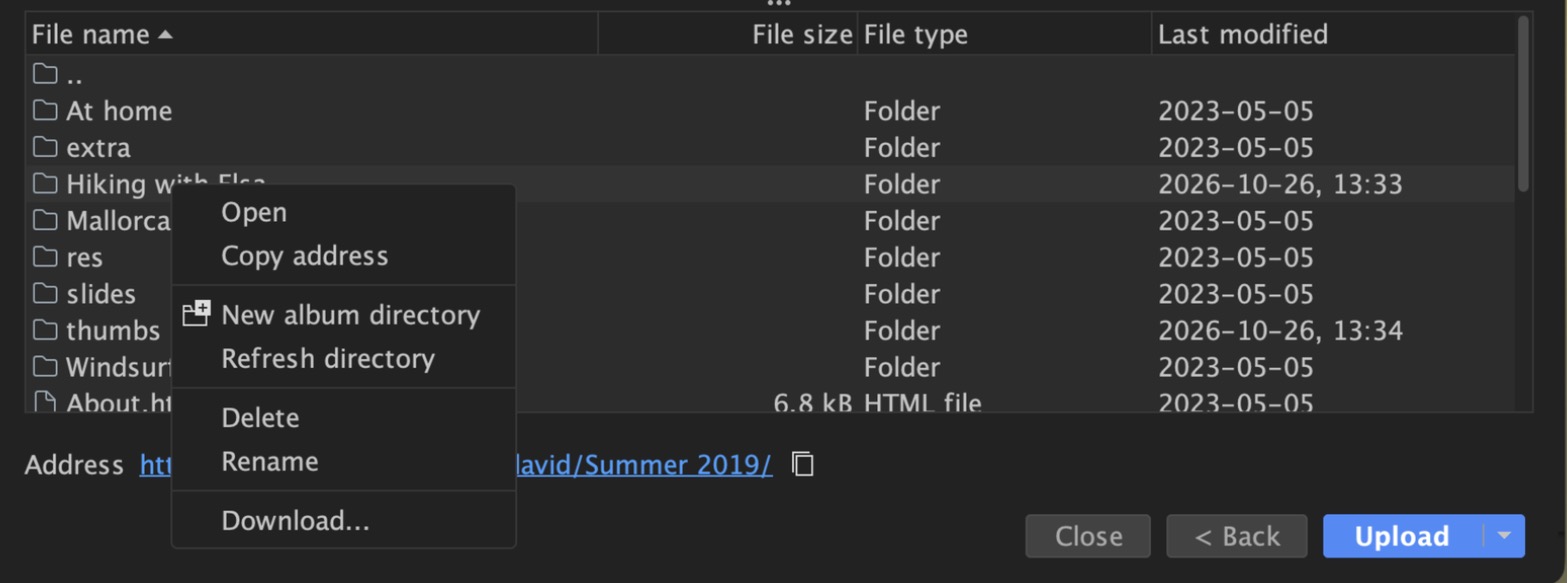
Right-click any file or folder under your website to open it in your browser, or to copy its web address for an email or a post. The address line below the file list shows the address of the folder you’ve selected, with its own copy button.
The small things that add up
- Password-protected folders show a padlock, so you can see at a glance which albums are private.
- Hidden files such as
.htaccessare shown dimmed, so they’re there when you need them but don’t get in the way. - Honest dates. Files the server gives no date for show a dash instead of an invented one, older files show just the date, and SFTP accounts show exact times.
- The window remembers its size and position, and its title shows which website and server you’re connected to.
- New web addresses default to https, as websites do today. Addresses you’ve entered with http:// are kept as they are.
- A calmer look: tidier toolbar and menus, and a quieter graphic.
Uploads that finish
Some of you have seen large uploads slow to a crawl near the end, or start over. The cause was a router or firewall closing the connection jAlbum uses to talk to the server, because it looked idle while a big file was being sent. jAlbum 41 now keeps that connection alive during transfers, and gives up after a few retries instead of trying forever. Large videos and big albums now finish.
Get jAlbum 41
jAlbum 41 is a free update for anyone on a current support & update plan. Update from within jAlbum, or download jAlbum 41 from jalbum.net. We’d love to hear how the new uploader works with your host. Share your experience in the jAlbum forum.