
jAlbum 40 gives the Edit view its biggest overhaul in years. “Adjust” replaces three older color tools, and Crop is rewritten and can now straighten photos too. Text and Shapes let you mark up photos the way you would in Apple’s Preview. And the new Faces mode shows who is in each photo and lets you name them.
A tidier toolbar
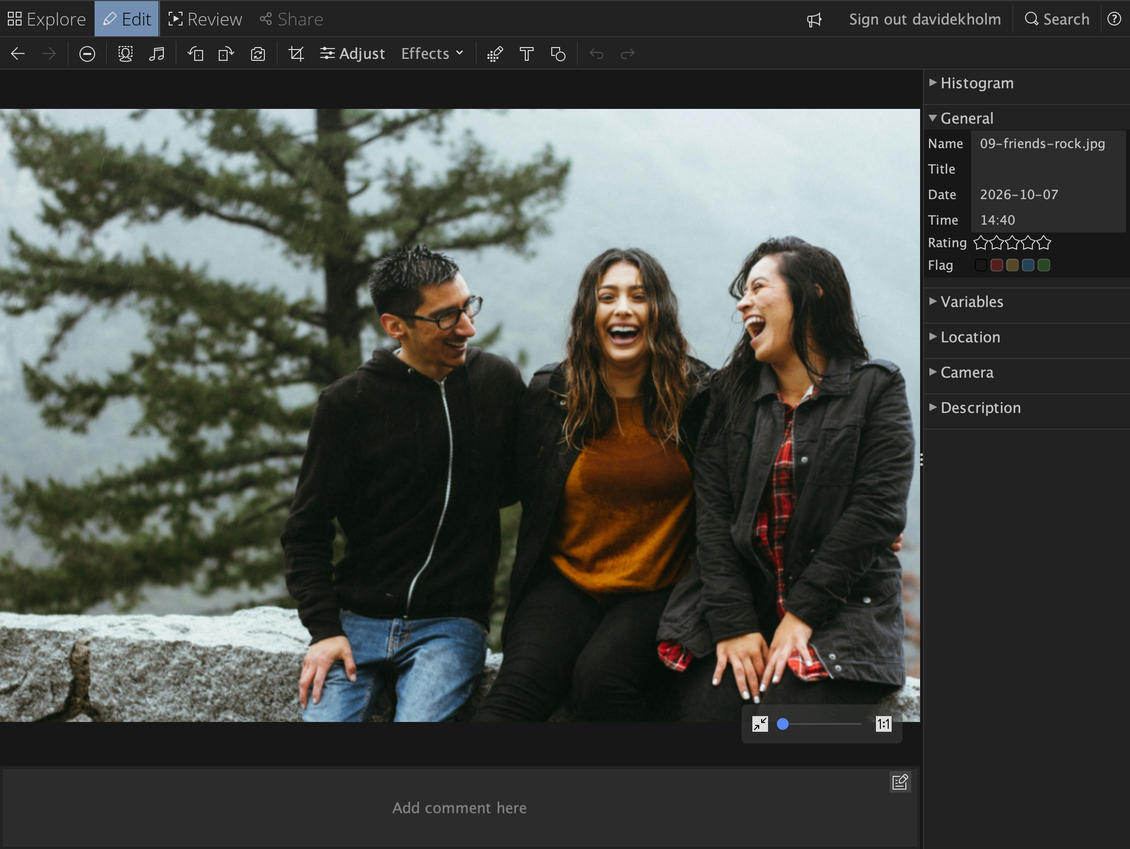
The Edit view’s toolbar is now grouped by what you’re doing, from left to right:
- Move between photos: ‹ and › step to the previous and next photo. The arrow keys work too, and so do ⌘← and ⌘→ (Ctrl on Windows and Linux).
- About the photo: Exclude, Faces and the sound clip button. None of these change the image.
- Turn it: Rotate left, Rotate right and Mirror. All three are lossless.
- Improve it: Crop and Adjust get buttons of their own, and Adjust shows its name next to the icon because you’ll use it all the time. Everything else, such as Sepia, Sharpen, Blur and Red-eye, lives in the new Effects menu.
- Mark it up: Pixelate Region, Text and Shapes.
- Undo and Redo come last, and apply to all the tools.
The keyboard shortcuts are easy to remember: ⌘⌥C crops and ⌘⌥A adjusts (Ctrl+Alt on Windows and Linux).
Tools now finish with plain Apply and Cancel buttons. You can also click a text or shape on an edited photo to jump straight back into the tool that made it.
The tool buttons are toggles, so you can always see which tool is open. A small blue dot on a button tells you the photo has that setting changed: marked faces, a sound clip, a pixelated region, texts or shapes. The Effects menu marks the effects in use the same way.

Adjust: light and color in one place
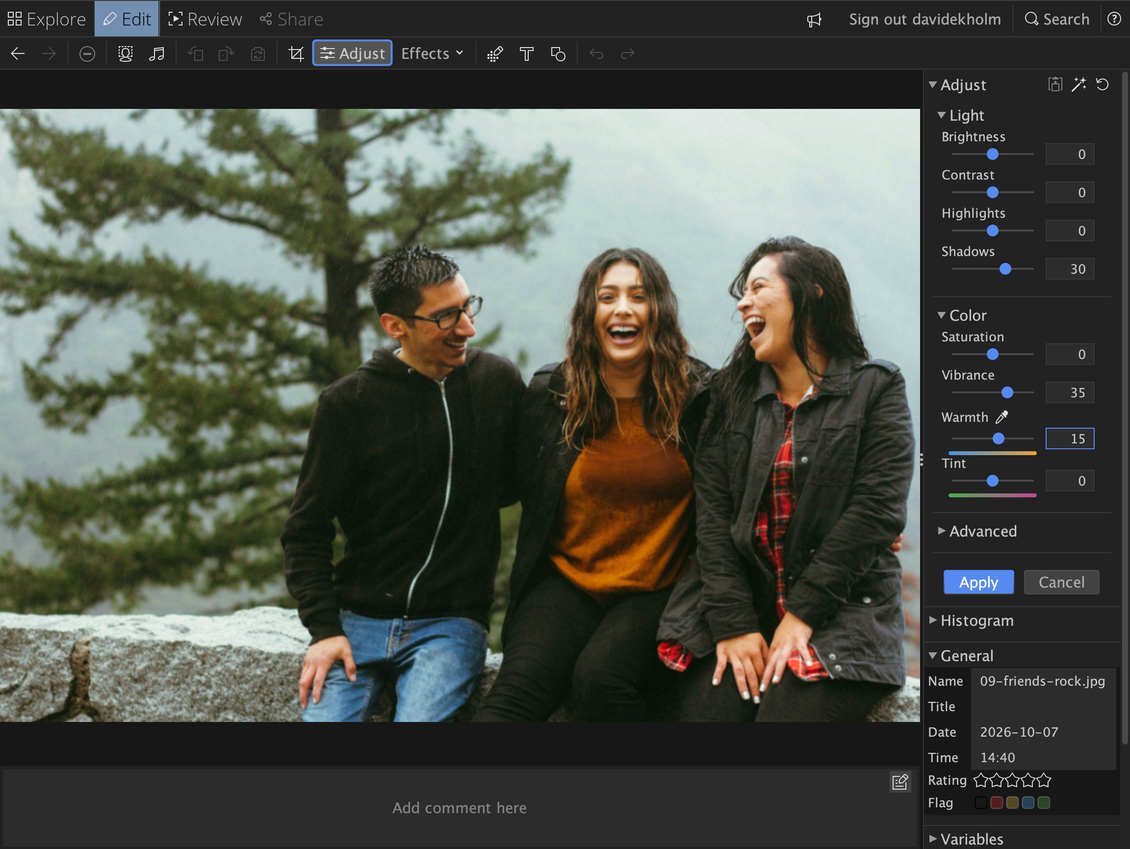
Adjust replaces the old Color Adjustment and Gamma tools with the sliders you know from Photos and Lightroom:
- Light: Brightness, Contrast, Highlights and Shadows
- Color: Saturation, Vibrance, Warmth and Tint
- Advanced: Whites and Blacks
Each slider runs from −100 to +100, and 0 leaves the photo untouched. The sliders are hard to overdo. Brightness and contrast bend the tones instead of clipping them, so black stays black and white stays white. Vibrance boosts muted colors and spares skin tones.
Three helpers make it quick:
- Auto, the magic wand at the top of the panel, reads the photo and sets white balance, brightness, whites and blacks, shadows, highlights and vibrance for you. It gives you a starting point to fine-tune.
- Reset, the round arrow next to it, puts every slider back to 0. To reset a single slider, double-click it.
- Use last, the button left of the magic wand, applies the settings you last applied. Handy for a series of photos shot in the same light.
- The eyedropper fixes a color cast in one click. Click something in the photo that should be neutral gray or white, and Warmth and Tint are set from it.
Everything is calculated at high precision and rounded only once, so smooth skies don’t break into bands.
Crop and straighten in one tool
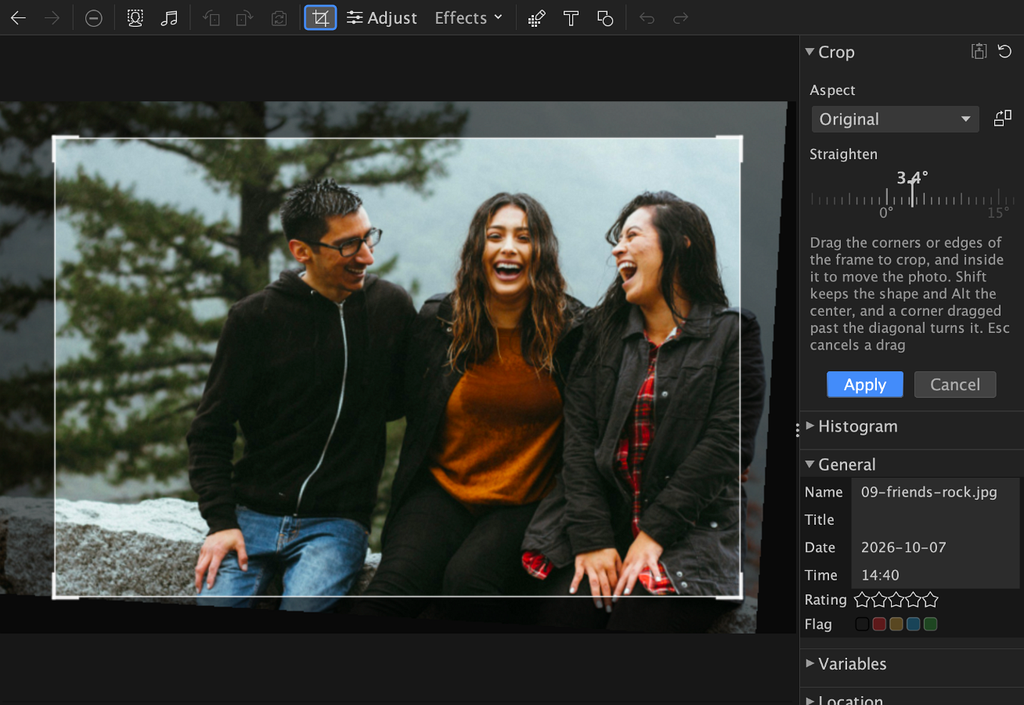
Crop now works the way it does in Apple Photos:
- Drag the corners or edges of the frame to crop. When you let go, the frame glides back to the middle and zooms to fill the view. Hold Shift to keep the shape, or Alt (Option on a Mac) to keep the center, so the opposite side follows along.
- Drag inside the frame to move the photo beneath it.
- Turn the dial to straighten. The photo turns beneath the frame, and the crop shrinks just enough to stay within the photo. Turn back and the crop is restored.
- Pick an aspect ratio: Freeform, Original, Square, 16:9 and more. Press X, or drag a corner past the diagonal, to switch between landscape and portrait.
- Reuse a crop: the button at the top of the panel applies the crop you last used to photos with the same proportions, and the round arrow resets the crop.
A rule-of-thirds grid shows while you crop, and a finer grid while you straighten. The frame can never leave the photo, so you never get empty corners. Crops made with earlier versions of jAlbum look exactly the same.
Text and Shapes: mark up your photos
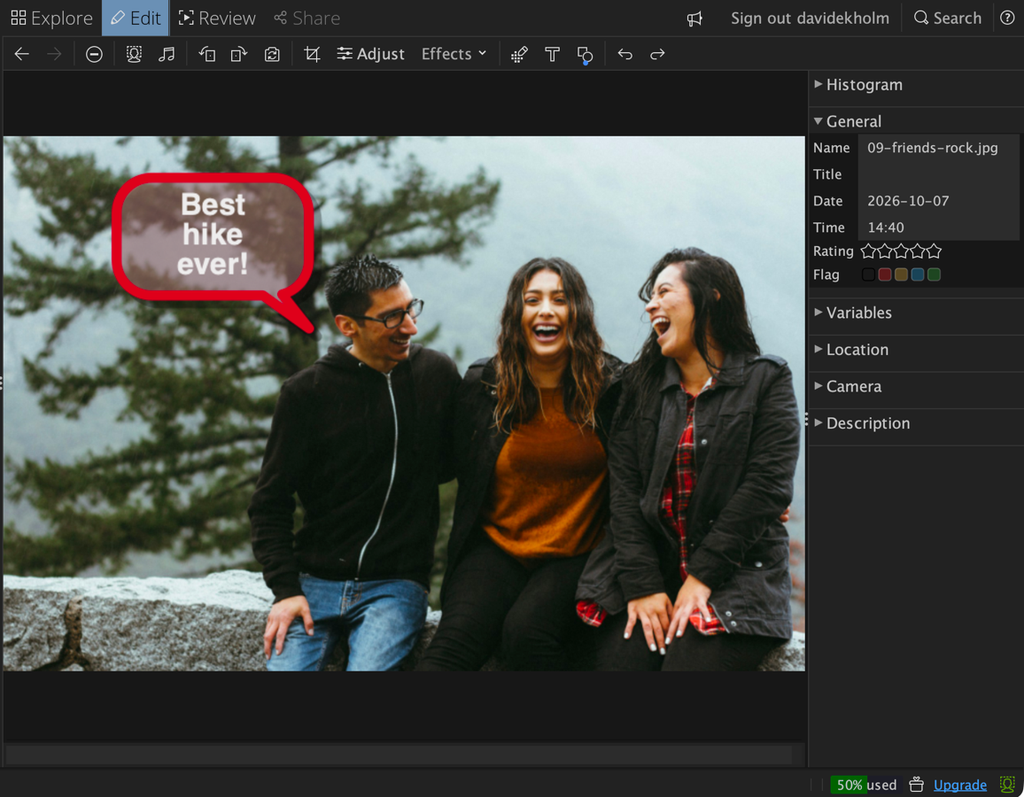
The Text tool has been rebuilt so you edit right on the photo. Double-click where you want a text and start typing. Drag a text to move it, or drag its corners to resize it. Texts made with older versions look the same.
The new Shapes tool adds lines, arrows, ovals, rectangles, rounded rectangles and speech bubbles:
- Pick a shape and it appears in the middle of the photo, ready to move and resize. Hold Shift to keep its proportions, or to keep a line at 45° steps.
- Set the border, fill, colors, line width and shadow in the panel.
- Double-click any shape with an area to type text inside it. A new speech bubble starts typing straight away.
Both tools share the same handy commands. Right-click for To Front, To Back, Duplicate and Delete. ⌘D duplicates, the arrow keys nudge, and ⌘Z undoes.
Shapes are drawn after the photo is scaled, so they stay crisp at any size.
Just better
These were just the highlights. The image tools have lots of smaller usability improvements too. For instance:
- When cropping an image, it no longer shows in smaller size
- Cropped images no longer show up blurry in the editor (if possible)
- Hit X when using the Crop tool to flip between portrait and landscape crop
- Closing the Text or Shapes tool keeps your work
- Click a text or shape in order to edit it (opens the right tool for the job)
- The sharpen tool now has a percentage slider
- The histogram now paints without breaking up when adjusting contrast
Faces: who’s in the picture?
Click the new Faces button and jAlbum frames the people in the photo. Name them right where they are, the way you would in Apple Photos. A solid frame means you’ve confirmed who it is, a name without a question mark means jAlbum is confident, and “Anna?” is a guess you can confirm with one click. Every name you confirm teaches jAlbum.
Frames aren’t just for faces. Drag across the photo to mark any region yourself, such as a pet or a point of interest, and give it a type and a description. This works even with face recognition turned off for the project.
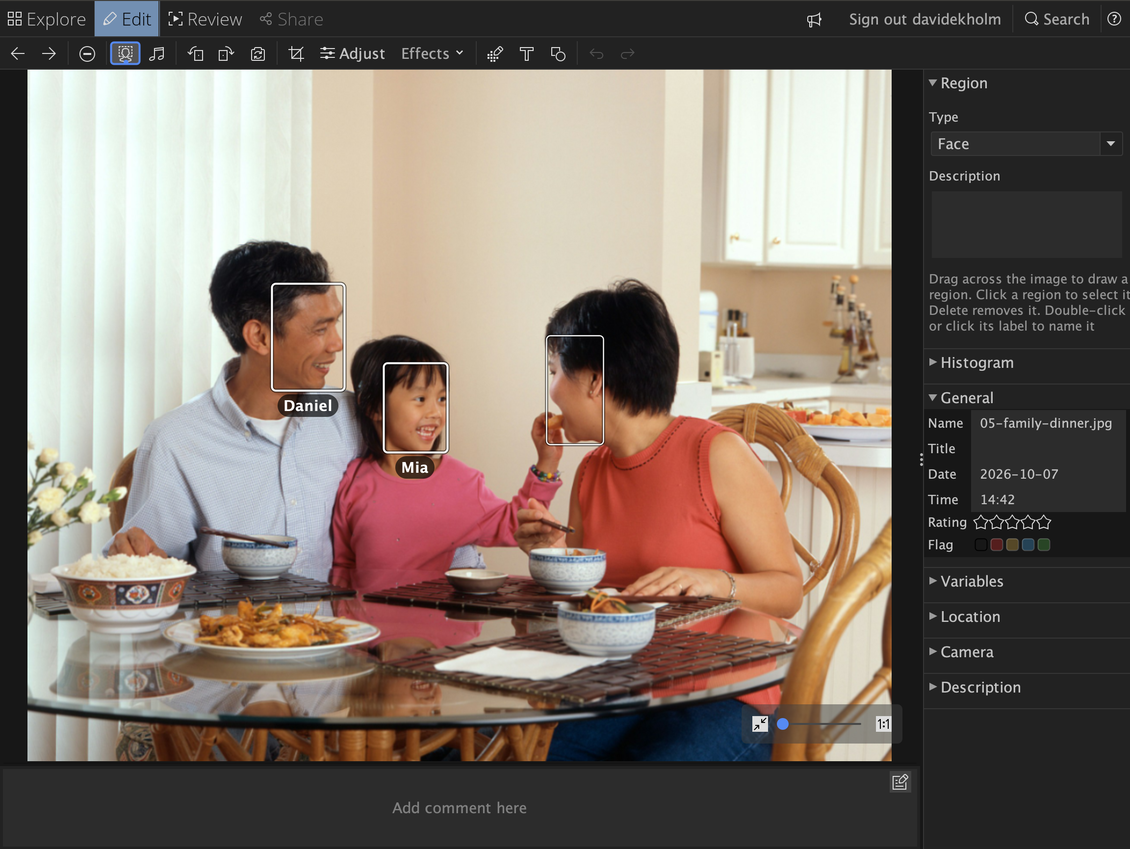
Face recognition runs on your computer and is set per project. Read all about it in jAlbum 40: Find people in your photos.
For skin developers
Skins can now show face frames in galleries: currentObject.getFaceRegions() returns what users see in the Edit view’s Faces mode, with each region’s box, name and how sure jAlbum is. Boxes are already adjusted for crops and straightening done in the Edit view. See the developer notes in jAlbum 40: Find people in your photos.
What happened to the old tools?
A few tools have been retired because the new ones do their job better:
- Color Adjustment and Gamma: use Adjust.
- Straighten: use Crop’s straighten dial.
- Flip: use the lossless Rotate and Mirror buttons.
Photos you’ve already edited with these tools still look exactly the same, in the Edit view and in your albums. The old Auto Correction tool is still available in the Effects menu, but Adjust’s Auto button is the new way to go.
Update to jAlbum 40 and give the new Edit view a spin. We’d love to hear what you think in the forum!
Demo photos from Unsplash: Logan Weaver, Sysoda Chau, Leianne Louis, Anna Keibalo, National Cancer Institute, Gabriel Tovar, Jordan Heinz, Vitaly Gariev and Omar Lopez. The names in the screenshots are made up for the demo.