
“Don’t add AI to jAlbum”,
a user once wrote to me. It got me thinking about the different sides of AI. On the positive side, AI can be a tremendous help in categorizing and searching your images. On the other hand, you risk handing far too much personal information over to centralized cloud services. Our users, like us, care a lot about privacy. So now that we’re adding AI to jAlbum, we’re doing it differently: it’s built on open source software that runs locally on your computer, and it’s off until you turn it on. Your photos, and the faces in them, never leave your computer.
With jAlbum 40, jAlbum can find the faces in your photos, learn who is who as you name them, and help you browse, search and organize your images by the people in them.
Turning it on
Face recognition is off until you turn it on, and you decide per project where it runs. The new face icon at the right end of the status bar shows whether it’s on for the open project:
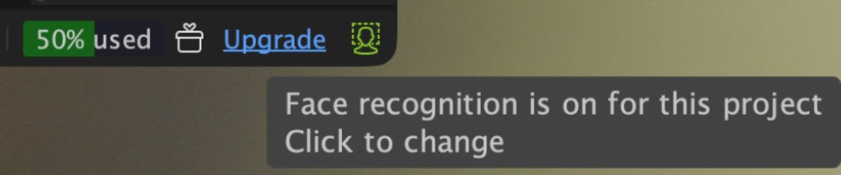
Click it to turn it on or off, or right-click a project and choose Face recognition. To have it on in all projects unless you say otherwise, tick Recognize faces by default under Preferences > General.
The first time, jAlbum downloads the face recognition engine and models from jalbum.net, several hundred MB. You’ll see the download progressing in jAlbum’s progress area, and you can abort it at any time. After that, jAlbum quietly looks for faces in the background in the projects where recognition is on, a few images per second, while you keep working. Images that have already been analyzed aren’t analyzed again, so reopening a project is instant.
Naming people
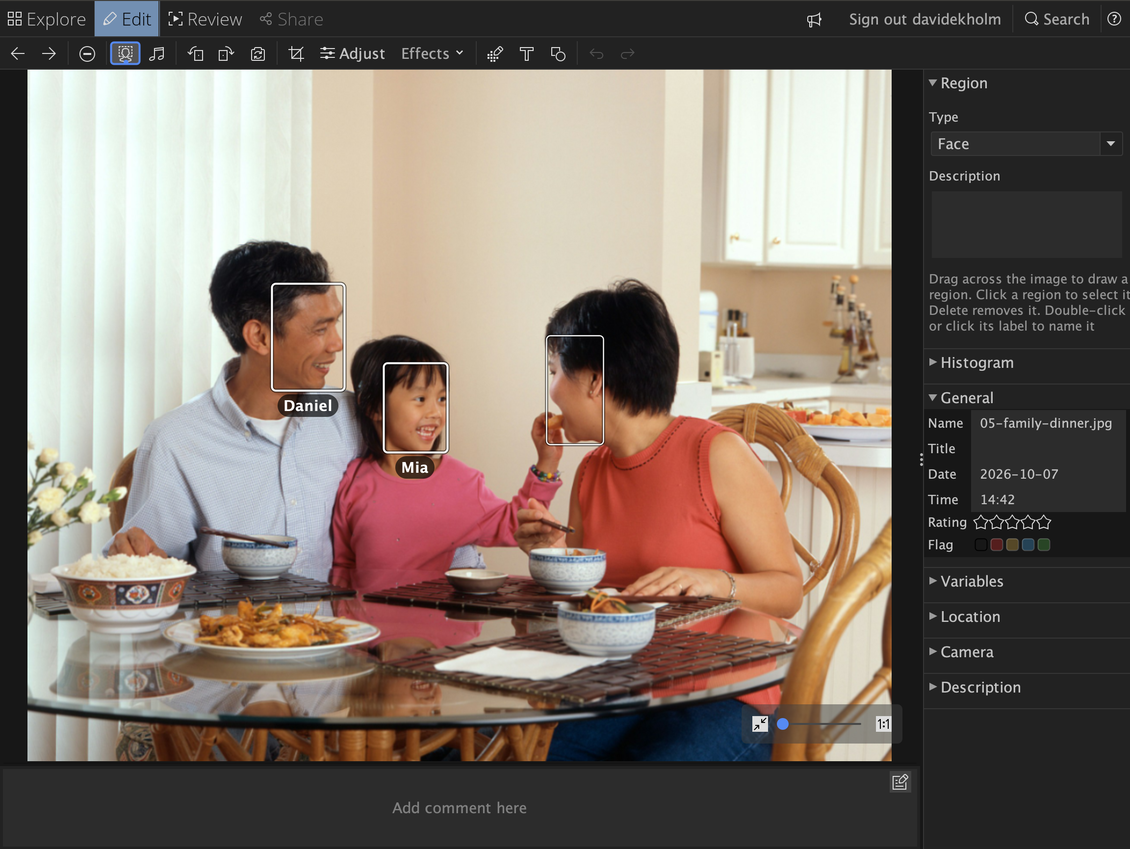
Open an image in the Edit view and click the new Faces button in the toolbar. Each face gets a frame and a label, and a small blue dot on the button tells you an image has faces marked:
- Double-click a face, or click its name, and type a name. Names you’ve used before are completed as you type. Press Enter, or simply click elsewhere or move to the next image, to save it. Esc cancels.
- Suggestions. Once you’ve named someone, jAlbum recognizes them in other photos and suggests their name with a dashed frame. When jAlbum is confident, the frame simply says “Anna”. When it’s unsure, it says “Anna?” with a ✓ next to it. Those are the faces where your help counts: click the ✓ to confirm, or type another name to correct it. Every answer teaches jAlbum to recognize people better, so it becomes confident about more and more faces.
- “That’s not Anna.” Clear the name of a suggested face and jAlbum won’t suggest that person for it again.
- Keyboard friendly. Tab and Shift+Tab move between the faces of an image, and the arrow keys, or ⌘/Ctrl plus the arrow keys, move between images.
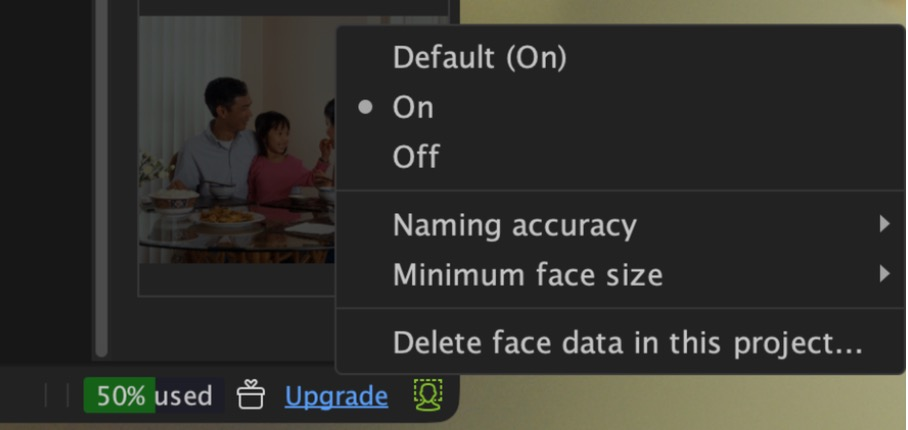
Click the “Face recognition” icon in the status bar to let you fine-tune things per project. Naming accuracy decides how sure jAlbum must be before suggesting a name: lower settings suggest more names but make more mistakes. Minimum face size ignores faces smaller than a percentage of the image, like people far away in the background. Both take effect at once, without analyzing your images again:
For this version, the recognizer only works for human faces. We plan to add a model that can handle pets and items as well in a follow-up release.
Managing people
Made a typo, or named the same person twice, say as “Bob” and “Bobby”? Tools > People… lists everyone you’ve named, across all your projects, each with their face:
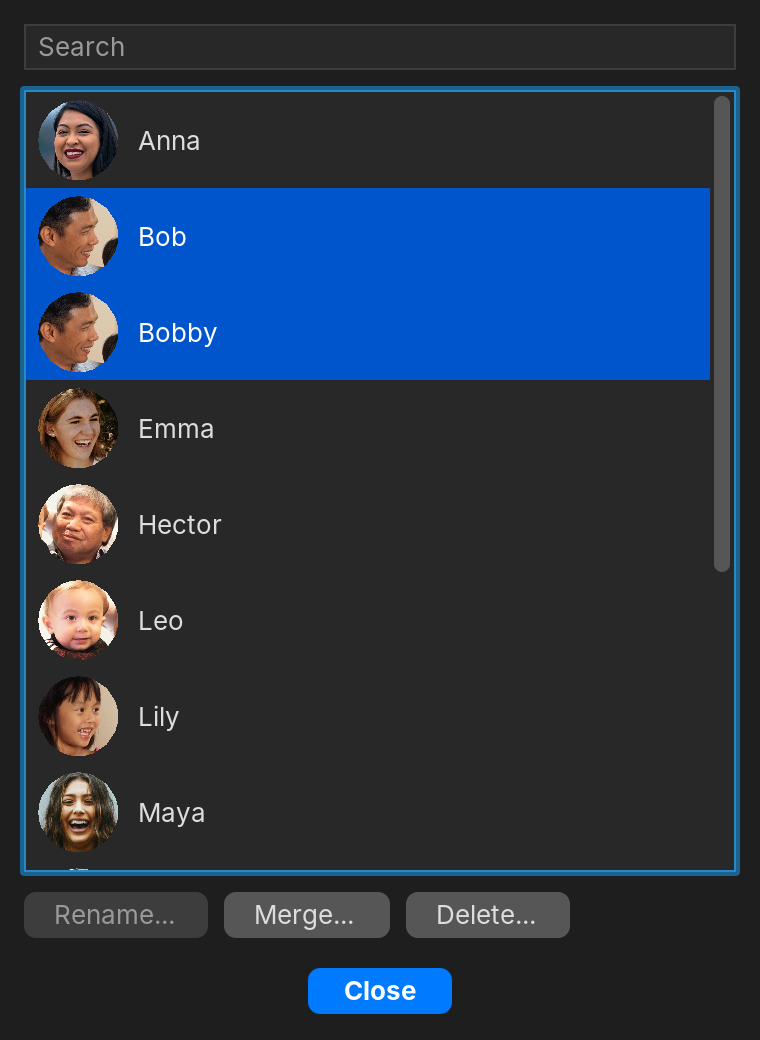
- Rename someone, and the new name is used everywhere at once, in all your projects.
- Merge two or more people who are really one: select them, click Merge… and pick the name to keep. Their faces, and what jAlbum has learned about them, are combined. Renaming someone to a name that’s already taken offers the same.
- Delete someone. jAlbum forgets what it learned about them, and their faces become unnamed in all your projects.
The list stays up to date as you name faces, and you can search it. People… is also in the menu of the face icon in the status bar.
Spot a misspelling while naming? Right-click the face in the Edit view’s Faces mode and choose Rename “Bob” everywhere…. Typing a new name in a face’s label still means “this face is someone else”, so that only changes the face you’re on.
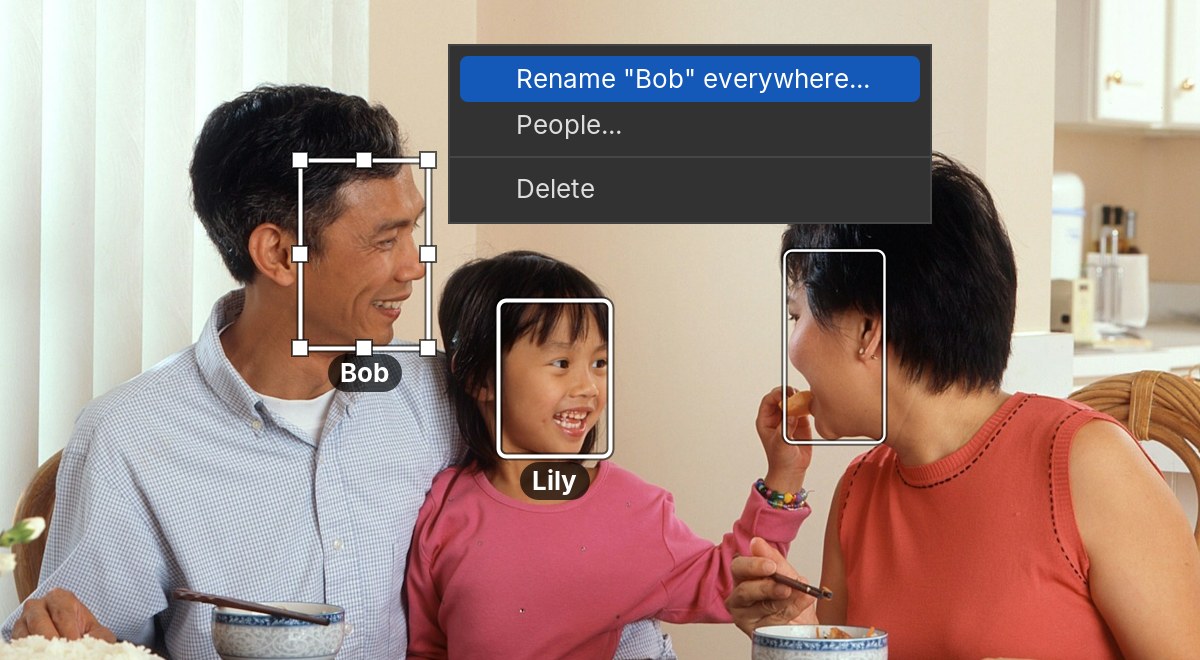
Names you’ve already saved in your image files keep the old spelling until you use Save names in image files again.
Already tagged people elsewhere? jAlbum picks that up
If you’ve named people in Adobe Lightroom, Apple Photos, digiKam or other photo software, those names are stored as “face regions” in your images’ metadata. jAlbum reads them and treats them as people you’ve named, even with face recognition turned off for the project. When it’s on, jAlbum also learns from them, so it can suggest those people in your other photos too.
It works the other way too: select images or folders, right-click and choose Save names in image files to store the names you’ve given in jAlbum in the images themselves, so other programs can see them. jAlbum never changes your image files unless you ask it to.
Browse, search and organize by people
- Tag view. A new view (View > Views, or saved in your project) that groups your images by tags: one folder per person and, if you like, per keyword. A photo of Anna and Bob appears in both their folders. Faces jAlbum is unsure of go into an Uncertain folder, sorted by its best guess and showing how many images are waiting for you. Double-click one to open it in the Edit view, confirm or correct the name, and it leaves the folder. Every answer teaches jAlbum, so the list often shrinks faster than you work through it. An optional “Unnamed faces” folder collects faces still waiting for a name. The view updates as you name people.
- Tags in the Explorer. Choose Tags from the Explorer’s Show menu to see the people in each image, marked with a small person icon, followed by its keywords. Double-click an image to open it in the Edit view with faces shown, ready for naming.
- Search and filter. Type a name in the search bar or the filter bar and jAlbum finds the images with that person, just like it finds keywords, titles and comments.
- Group by tags. Prefer real folders? Organize > Group by tags (Ctrl/Cmd+Alt+T) moves images into folders named after the people in them. Images with several people go into nested folders, like Anna/Bob, so photos of a particular group of people are easy to find.
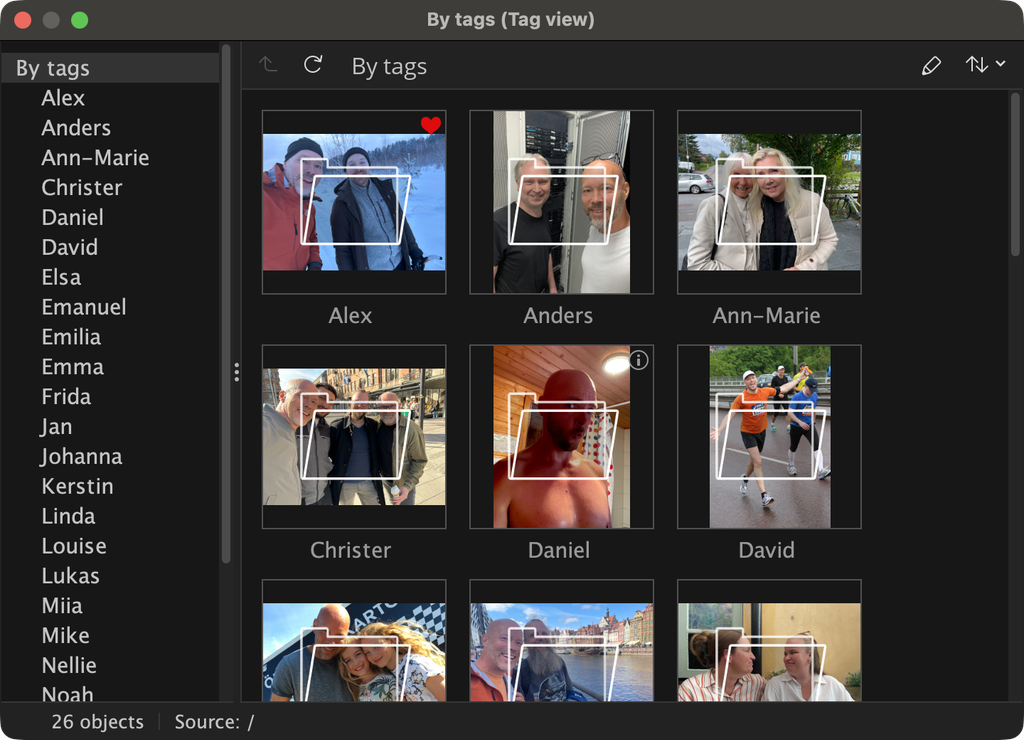
Moving and renaming images and folders in jAlbum keeps their faces and names, so there’s no need to analyze them again.
Your privacy
Faces and names are personal data, and jAlbum treats them that way:
- All analysis happens on your computer. Nothing is uploaded.
- Face recognition is off until you turn it on, and only runs in the projects you choose.
- The face information gathered isn’t stored within the images, so it won’t accidentally be uploaded when you upload a gallery. Instead, jAlbum uses a small “.jalbum/faces.bin” file under each image folder to gather face information.
- To make face information available to other software titles, use “Save names in image files”. This adds face information to each selected image using the standardised xmp format.
- Whether names appear in your published albums is up to the skin you use. jAlbum only ever hands skins names you’ve confirmed and names it is confident of, never names it’s unsure of (“Anna?”), and skins can choose to show confirmed names only.
- Delete face data in this project, in the project’s Face recognition menu, removes the faces found in the project and what jAlbum learned from them, in one click. People you’ve also named in other projects are kept.
- Delete a person in Tools > People… and jAlbum forgets them, and what it learned about them, in all your projects.
Notes for skin developers
jAlbum 40 introduces the concept of tags: keywords and the names of the people in an image. Keywords work exactly as before; people are the new part. Here’s what’s available to skins.
Variables
| Variable | Contents |
|---|---|
keywords | Unchanged: the image’s keywords, comma separated. |
people | New: the names of the people in the image, comma separated and sorted. |
tags | New: keywords and people together, comma separated, without duplicates (ignoring case). |
People come from faces named in jAlbum and from face regions in the images’ XMP metadata (Lightroom, Apple Photos, digiKam and others). Names the user has confirmed are included, as are names jAlbum recognizes with confidence. Uncertain suggestions are never included.
Names are personal data, so it’s up to your skin what reaches the published album. Nothing changes in existing albums until a skin starts using these variables. If you want to publish only names the user has approved, use the face region API below.
If your skin already defines its own variables named people or tags, please check for conflicts.
JSON data
When the project generates JSON data, each image with named people gets a people array next to the existing keywords array.
Java/Groovy API
engine.getPeople(ao)andengine.getTags(ao)return the same as the variables, as lists.ao.getFaceRegions()returns the faces (and other regions, like pets) of an image as the user sees them in the Edit view’s Faces mode: eachFaceRegionhas a box (getX(),getY(),getWidth(),getHeight(), 0–1 of the published image, with crops and straightening taken into account),getName(),getLabel(),getType()andgetDescription(). To decide what to publish, useisApproved()(named by the user or in the image’s XMP data),isConfident(),isUncertain()(“Anna?”) andgetConfidence()(0–1). It includes regions drawn in jAlbum, which aren’t stored in the image files, and never waits for analysis.XmpFaceRegions.read(ao)(innet.jalbum.faces) returns the face regions stored in an image’s XMP metadata only, in upright, normalized coordinates of the unedited image. Skins that read XMP regions through scripting today can switch togetFaceRegions().
Example, publishing only names the user has approved:
for (r in currentObject.getFaceRegions()) {
    if (r.isFace() && r.isApproved()) {
        // …
    }
}
net.jalbum.faces.XmpFaceRegions.read(ao) returns the face regions stored in an image’s XMP metadata only, in upright, normalized coordinates of the unedited image. Skins that read XMP regions through scripting today can switch to getFaceRegions().
We’re looking forward to seeing what you build with it. Questions and feedback are welcome in the forum.